

How To Create A Transfer Order In Sap
and last updated on Posted on .
 Large companies having many plants in different geographical locations commonly require stock movement from one plant to another. For this purpose, SAP ERP has a special process with SAP stock transport order (STO) that enables to move stock from one plant to another or between different storage locations of plants.
For example, in one of my trading client, we used to import materials from abroad in big containers and then those containers were unloaded into one big branch (plant) as it was cost efficient to import materials in bulk to one location. Next, other smaller branches (plans) raised SAP stock transport order (STO) to purchase stock from big branch for the quantity required. The big branch dispatched the quantity against the STO on the mentioned delivery dates.
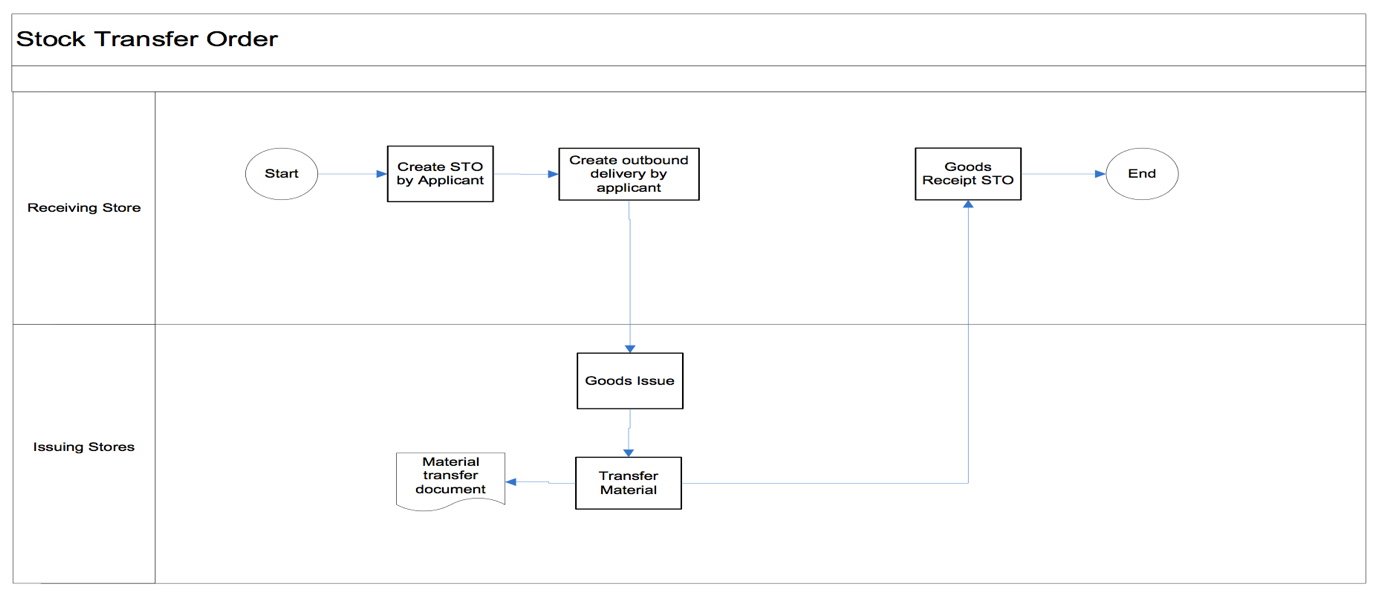
In the below screenshot, you can see a diagram illustrating the stock transfer process. STO is raised by a receiving plant and sent to a supplying plant. The supplying plant then delivers the material, which in the SAP system will be shown as stock in transit. When the receiving plant receives the material, goods receipt takes place at the receiving plant. There is no invoicing, as the stock is transferred between plant that are part of the same company.
How to Create SAP Stock Transport Order?
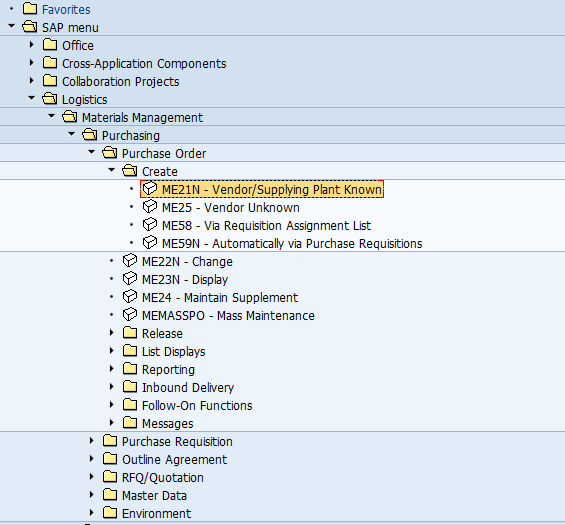
To create a stock transport order in SAP, please follow the steps described below. First, either start the transaction ME21N or navigate to the following path in SAP menu:Logistics – Materials Management – Purchasing – Purchase Order – Create – ME21N – Vendor/Supplying Plant Known.
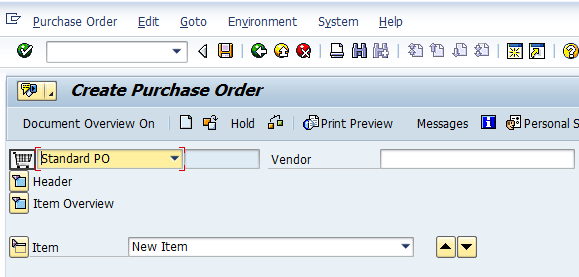
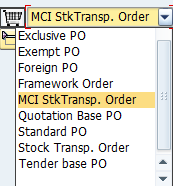
Stock transfer process uses the standard transaction ME21N for creating purchase orders (PO), where we trigger STO process by selecting document type = Stock Transport Order as shown on the screenshots below.
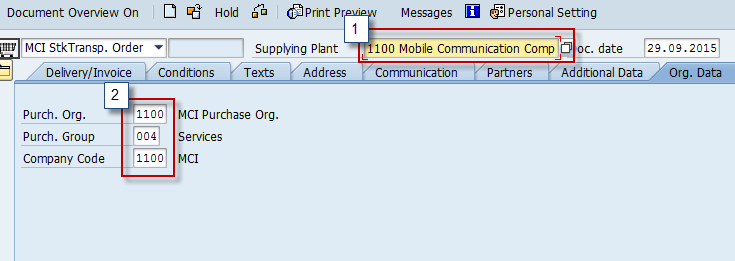
Here you need to provide your supplying plant. As mentioned above, the supplying plant in our example is the big branch which imported the stock and has stock available. You also have to provide your purchase organization, purchase group and company code as show on the screenshot below. Our tutorials about SAP MM organizational structure should be helpful in learning more about purchasing organization and other MM organizational units.
In the item overview screen below, you need to provide the material that you would like to procure from the supplying plant along with the plant number which is ordering this material, quantity, storage location and delivery dates as shown below:

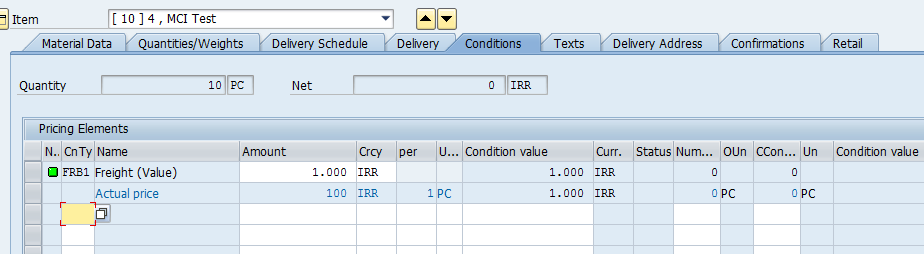
If you have any additional charges which needs to be added to the cost of the material, you should provide the details in the conditions tab. For instance, it is possible to add freight charges as shown below:
Now, your stock transport order is ready and to cross check for any errors in your STO, click on  button which will tell you if everything is correct in your document. If not, then a red button will come up notifying you about error(s) in the document that needs to be fixed before you can save the document. Once all issues are fixed, you click the
  button, which will save the document. The SAP system will provide you with SAP generated document number as shown below notifying that the document has been created.

Goods Issue Against SAP Stock Transport Order
Once the STO is created, the next step is to do a goods issue against the STO raised above. Go to the transaction MIGO or navigate to the following path in SAP menu:Logistics – Materials Management – Inventory Management – Goods Movement – MIGO.
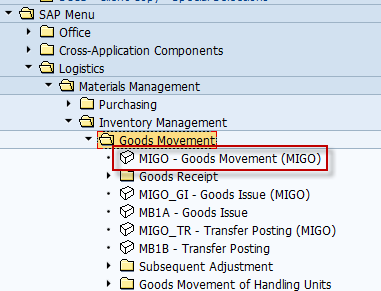
In MIGO, it is necessary to do goods issue against a purchase order, with a movement type 351 which is used for moving materials from supplying plants to stock in transit of receiving plants.
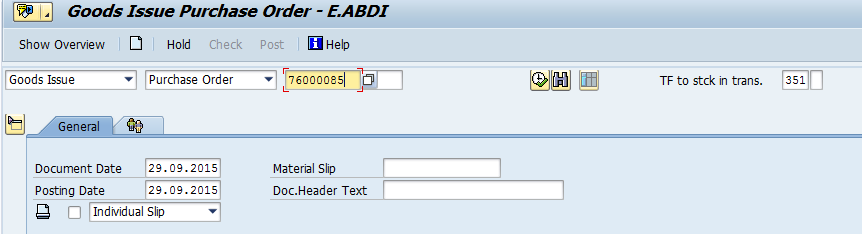
Here you need to enter the number of STO, set OK checkbox for the item and then click on Post button which will post your goods issue and provide you a message that a material document was created (see screenshots below).
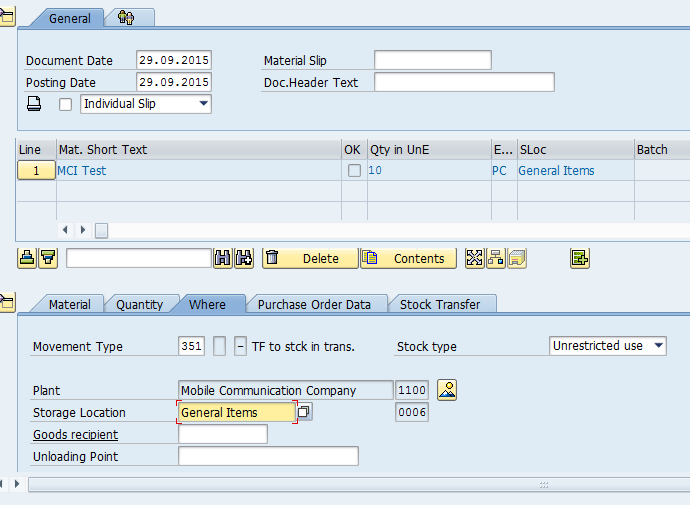

Goods Receipt Against SAP Stock Transport Order
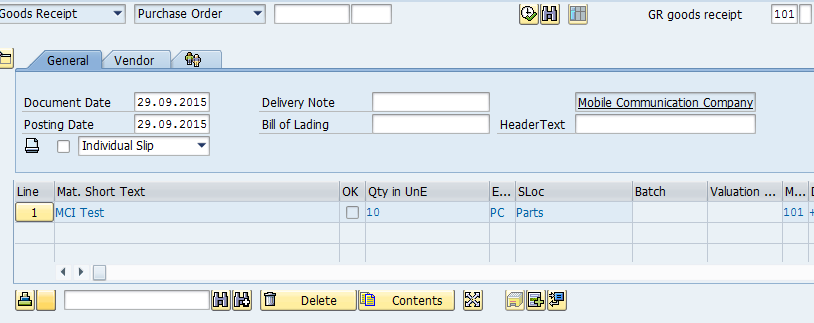
Now, the last step is to do goods receipt in the receiving plant when the goods physically arrive there. Goods receipt is also done in MIGO transaction. It is necessary to perform goods receipt against a purchase order using the movement type 101 as shown below. Then, set the OK checkbox next to the material item and finally post the document by pressing Post button. The system will provide you a message that the material document was posted.

—
Did you like this SAP MM tutorial? Have any questions or comments? We would love to hear your feedback in the comments section below. It'd be a big help for us, and hopefully it's something we can address for you in improvement of our free SAP MM tutorials.
How To Create A Transfer Order In Sap
Source: https://erproof.com/mm/free-training/sap-stock-transfer-order/
Posted by: simsyonson.blogspot.com
0 Response to "How To Create A Transfer Order In Sap"
Post a Comment